
Select Equipment
How to select equipment to dispense to from a fuellox device
- First you will need to navigate to the dspense screen
- To start there are 2 ways to go about selecting equipment
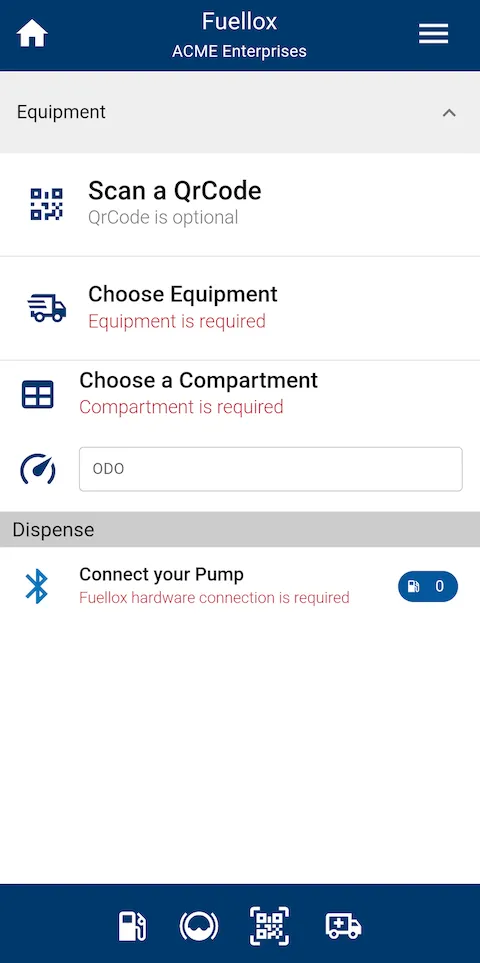
- Choose Scan a QrCode
- Your camera will open (or prompted if permission is required)
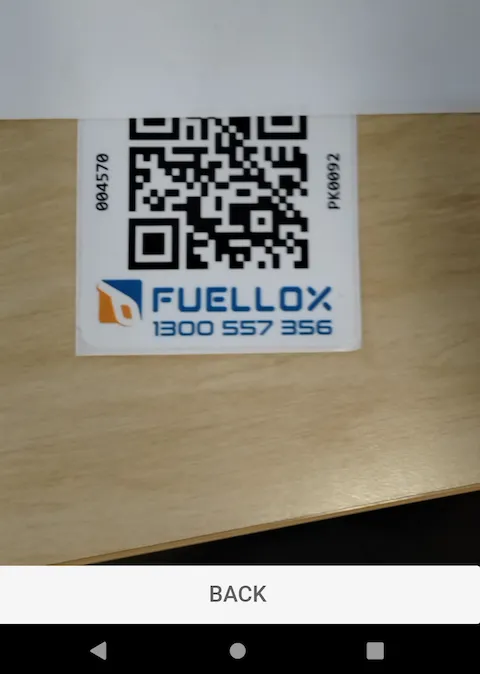
- After scanning a fuellox QrCode, the equipment, compartment and fluid will be selected for you
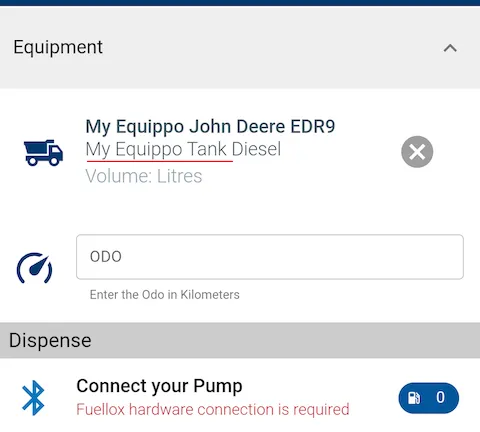
- Here we can see the (1) Equipment is selected for us and the (2) Compartment, as well as fluid
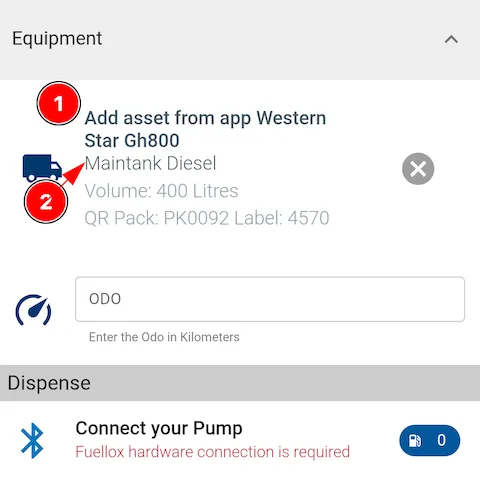
- This is ideal because it prevents incorrect fluids from entering tanks
- Here we can see the (1) Equipment is selected for us and the (2) Compartment, as well as fluid
- Your camera will open (or prompted if permission is required)
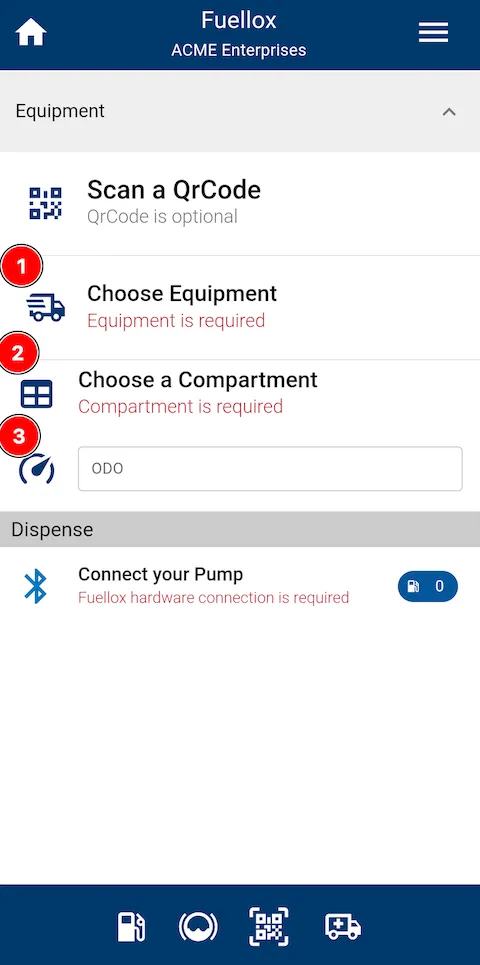
- Choose Equipment
-
Prompted with equipment available for selection
- Here you can search, sort, and select the equipment you would like to fill
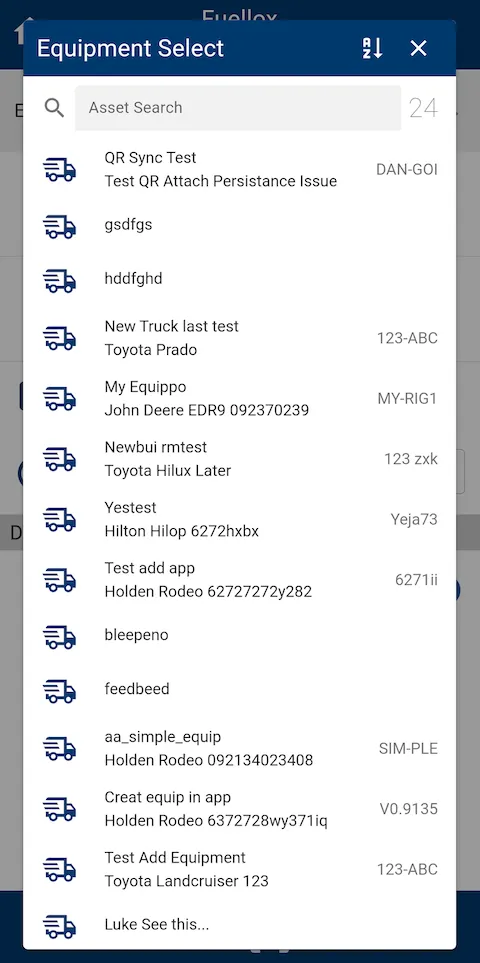
- Here you can search, sort, and select the equipment you would like to fill
-
After choosing one,
- If it has more than one compartment you will be required to select which compartment you intend to fill
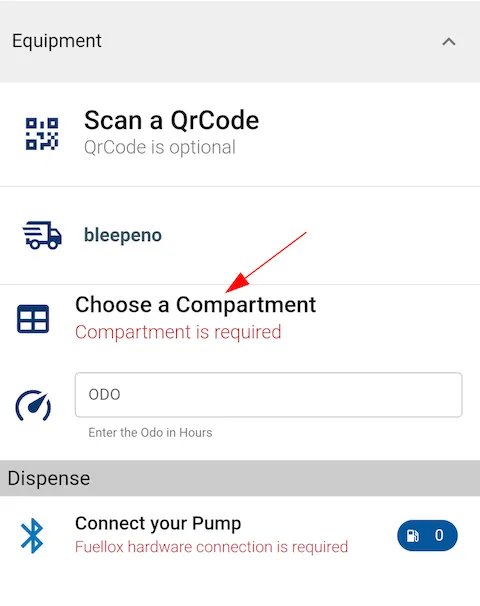
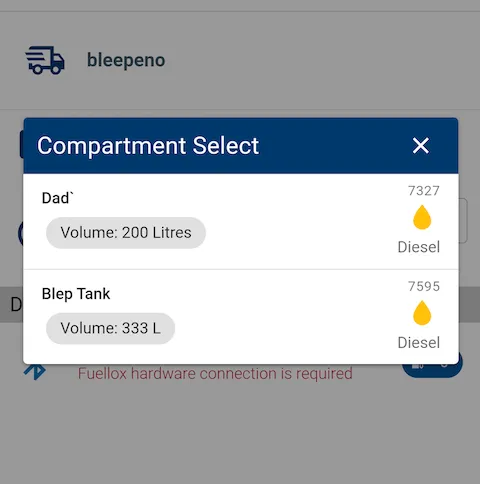
- After clicking ‘Choose a Compartment’, you will need to select one from the list
- You can see the respective fluid here
- After selecting a compartment, you will see the compartment listed under the equipment
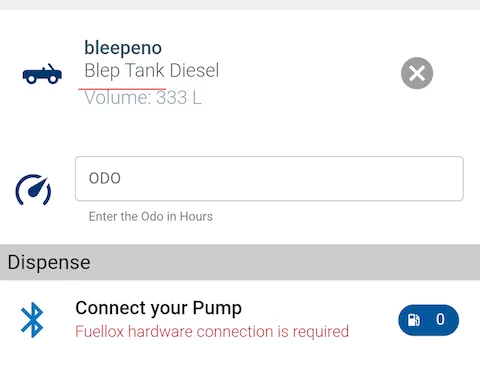
- You can see the respective fluid here
- If it only has one compartment it will be selected for you by default
- If you try to choose a compartment before selecting an equipment, no options will be present
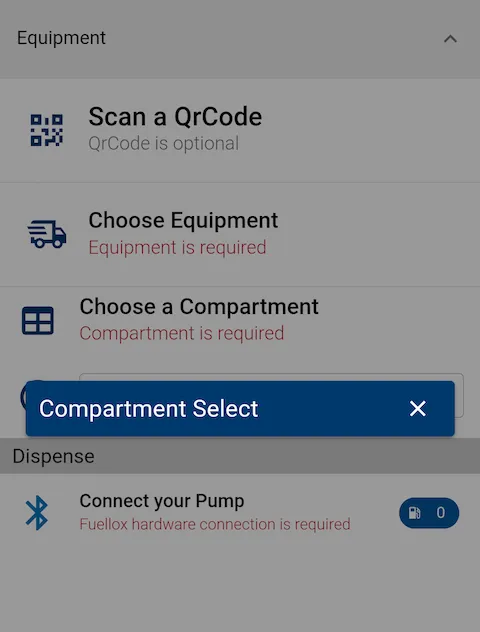
- If it has more than one compartment you will be required to select which compartment you intend to fill
-
Some equipment require current Odometer reading to be entered
-
At this stage the app will know what fluid goes into the respective compartment/fluid and will only show you pumps to connect to that are registered as that fluid
-