
How to Sync Your App
Sync your app
-
Firstly, initiate the sync through one of the following methods
- Sync through menu:
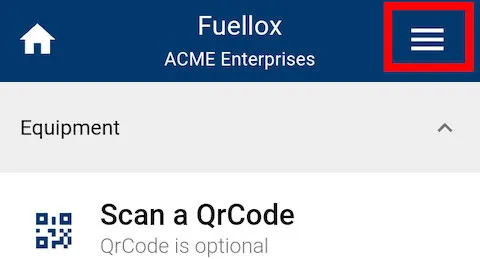
- Click on the hamburger menu in the top right to open the drop down
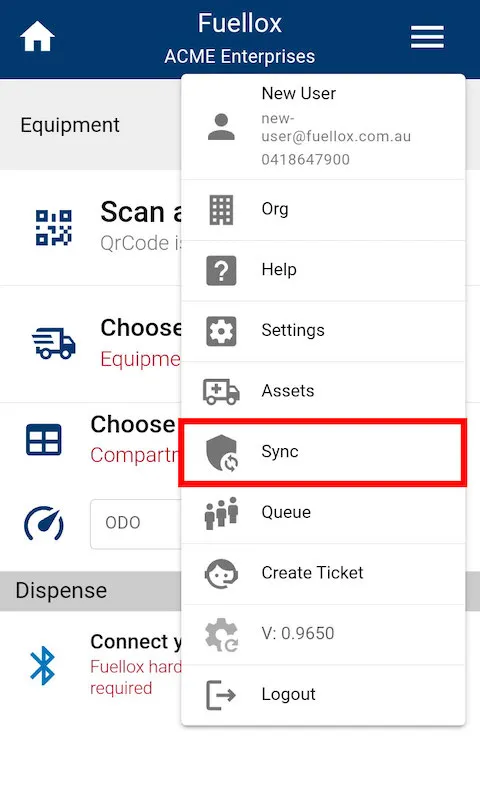
- Click Sync
- Click on the hamburger menu in the top right to open the drop down
- Alternatively, you can sync through home screen:
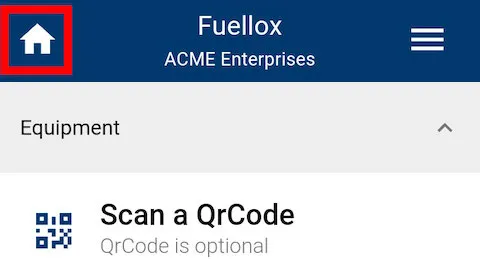
- Click on the Home icon in the top right to navigate to the home page.
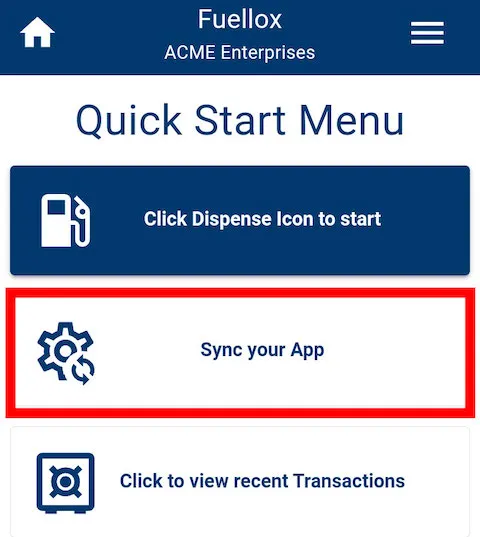
- Click ‘Sync your App’
- Click on the Home icon in the top right to navigate to the home page.
- Sync through menu:
-
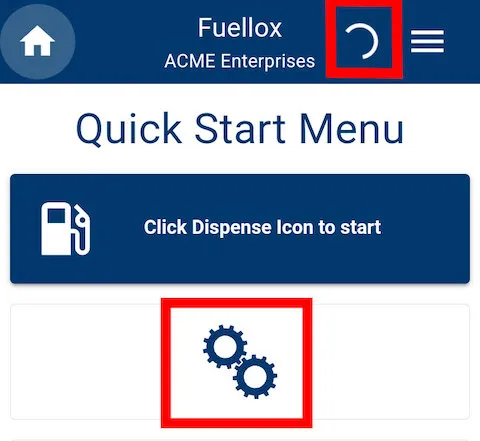
Following either option will prompt a loading circle to appear on your top menu bar, indicating that a sync is in progress
- If you get a yellow or red notification at the top of your screen, you will need to address them first.
- For example:

-
When this loading circle disappears, you may get a green ‘Sync Complete’ notification on your screen, indicating a successful sync. (Not an issue if you do not)

-
Your app should now be able to recognize and scan any newly set up QrCodes.